

Blogs
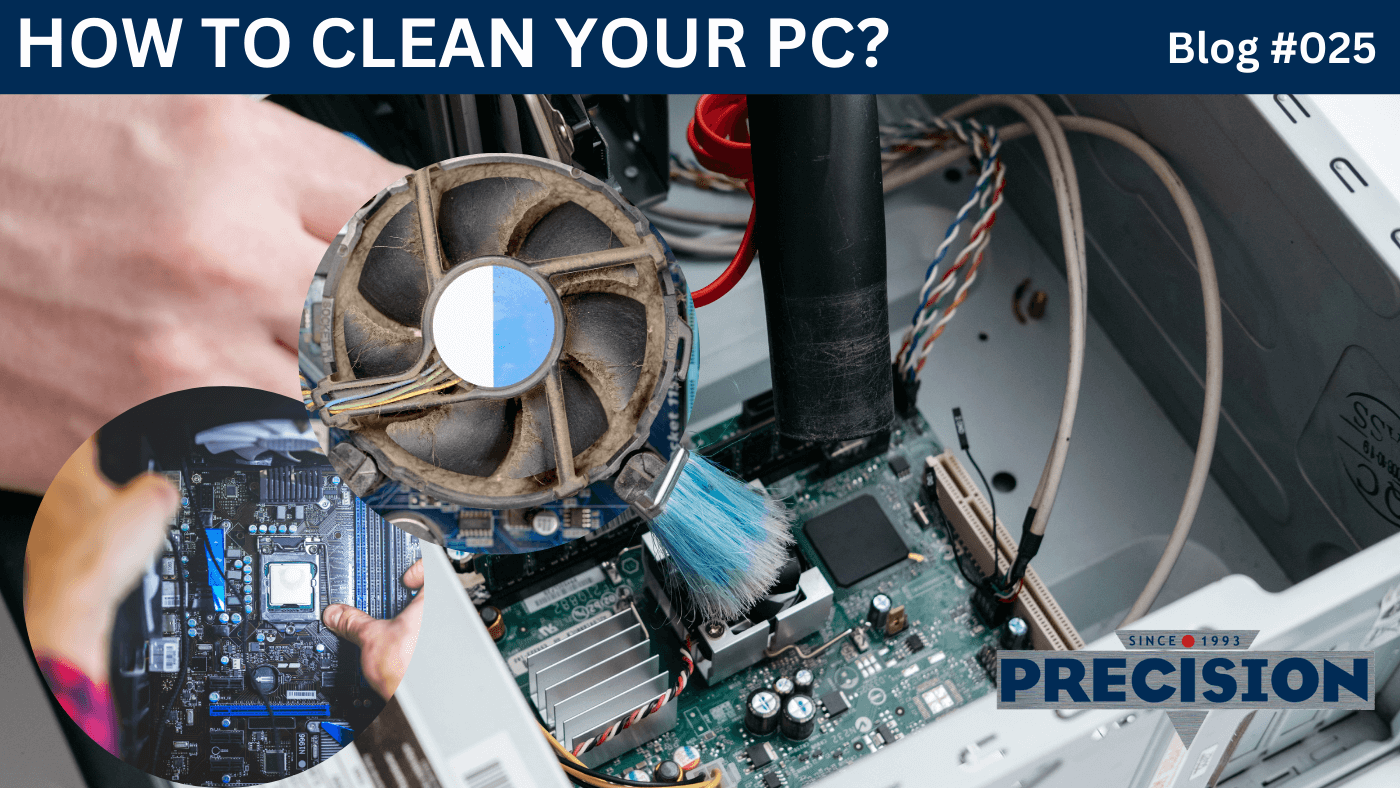
Tips on How to Clean Your Computer Inside & Out
How to Clean Your Computer?
In our increasingly digital world, computers have become an indispensable part of our lives. Whether you use your device for work, gaming, or leisure, cleaning your computer inside and out not only looks better but also performs better. Dust, dirt, and grime can accumulate both inside and outside your machine, leading to overheating, slow performance, and even hardware damage. Regular cleaning is crucial for maintaining your computer’s health and extending its lifespan. This blog will guide you through the essential steps to clean your computer inside and out, ensuring optimal performance and longevity.
A clean computer can also contribute to better productivity. Clutter and distractions from a dirty workspace can hinder focus and creativity. By keeping your computer and surroundings clean, you create a more organized and efficient working environment, allowing you to concentrate on your tasks without unnecessary interruptions.
Cleaning your computer inside and out doesn’t have to be a daunting task; with the right tools and knowledge, you can efficiently maintain your device’s health. In this blog, we will explore the step-by-step process to clean your computer inside and out, focusing on practical tips and best practices that anyone can follow.
With this in mind, it’s crucial to establish a regular cleaning routine. Depending on how often you use your computer and the environment it’s in, you may need to clean it more or less frequently. For example, if you have pets or live in a dusty area, you might want to clean your computer every month. Conversely, if your computer is in a relatively clean environment, a quarterly cleaning may suffice.
In conclusion, understanding the importance of regular cleaning and maintenance will empower you to take better care of your computer. A clean machine leads to better performance, longer lifespan, and a more enjoyable user experience. Now that we've laid the groundwork, let’s delve into the specific steps you can take to clean your computer inside and out. By following the guidelines in this blog, you will not only enhance your device's performance but also foster a healthier and more productive computing environment. So, let’s get started on this essential task that will keep your computer in top shape!
Why Clean Your Computer?
Many users overlook the importance of regular cleaning, thinking that as long as their computer is functioning, it doesn't need attention. However, several compelling reasons highlight the need to clean your computer inside and out:
- Enhanced Performance: Dust buildup can obstruct airflow, causing your computer to overheat. This can lead to throttling, where the system slows down to prevent damage, resulting in poor performance. Keeping your computer clean helps maintain proper airflow and temperature.
- Prolonged Lifespan: Regular cleaning can extend the lifespan of your hardware. Dust and dirt can cause wear and tear on internal components, leading to premature failure. By regularly cleaning your machine, you can prevent such issues.
- Improved Aesthetics: A clean computer is more visually appealing. Whether you have a sleek laptop or a powerful desktop, keeping it clean enhances its appearance and gives a professional impression.
- Reduced Allergens: Dust and debris inside and around your computer can contribute to poor air quality and allergies. Cleaning helps reduce these allergens, creating a healthier environment.
Better Hygiene: Especially in shared spaces, a clean computer can help reduce the Spread of Germs and Bacteria, Making It Safer for Everyone
Cleaning your computer not only enhances its performance but also helps reduce the spread of germs and bacteria, making it safer for everyone. In a time when hygiene is paramount, a clean workspace can contribute significantly to your health and well-being. Studies show that keyboards and computer mice can harbour a significant amount of bacteria, often more than a toilet seat. Regular cleaning minimizes this risk, creating a more sanitary environment that benefits not only you but also those around you.
Preparing for Cleaning
Before diving into the cleaning process, it’s essential to gather the right tools and prepare your workspace.
Tools Needed:
- Soft microfiber cloths: Ideal for cleaning surfaces without scratching them.
- Compressed air canister: Perfect for blowing dust out of hard-to-reach areas.
- Isopropyl alcohol (at least 70%): Effective for disinfecting surfaces and evaporates quickly.
- Cotton swabs or soft brushes: Useful for precision cleaning in tight spots.
- Screwdriver: Required for opening the case, if necessary.
- Antistatic wrist strap: Optional but recommended to prevent static electricity from damaging components.
Safety Precautions:
- Turn off your computer and unplug it from the power source: This is crucial to avoid electrical shock and prevent damage to the device.
- Allow the device to cool down before cleaning: This is especially important for components that generate heat during use, like the CPU and graphics card.
- If you’re opening the case, make sure you’re grounded: Prevent static electricity from damaging sensitive parts by touching a grounded metal object or using an antistatic wrist strap.
Cleaning the Outside of Your Computer
- Dusting and Wiping Surfaces: Use a microfiber cloth to wipe down the exterior surfaces, including the monitor, keyboard, and casing. For stubborn stains, dampen the cloth slightly with water or isopropyl alcohol, ensuring not to soak the cloth.
- Cleaning the Keyboard: Turn the keyboard upside down and gently shake it to dislodge any debris. Use compressed air to blow out dirt between the keys. For a deeper clean, use cotton swabs dipped in isopropyl alcohol to clean the surfaces around the keys, ensuring to get into the crevices where dirt can accumulate.
- Cleaning the Monitor: Use a dedicated screen cleaner or a mix of water and isopropyl alcohol on a microfiber cloth. Avoid using paper towels, as they can scratch the screen. Gently wipe the screen in circular motions to remove fingerprints and smudges, taking care not to apply too much pressure.
- Cleaning Ports and Vents: Dust can accumulate in ports and vents, leading to connectivity issues and overheating. Use compressed air to blow out dust from USB ports, HDMI ports, and ventilation areas. Regular maintenance of these components ensures optimal performance and prevents unnecessary strain on the computer's cooling system.
Cleaning the Inside of Your Computer
- Opening the Case: For desktops, carefully remove the side panel using a screwdriver. For laptops, consult the manufacturer’s instructions for accessing internal components. Always ensure that you have the correct tools and instructions to avoid damaging the device.
- Dusting Off Components: Use compressed air to blow out dust from fans, heatsinks, and other components. Be careful not to touch any of the internal parts directly, as oils from your skin can cause damage. Ensure that the air is directed away from sensitive components like the motherboard and RAM.
- Cleaning the Fans: Dust can severely impact fan performance. Hold the fan blades in place to prevent them from spinning while you blow air on them. Wipe the surfaces gently with a cloth if needed, being cautious not to dislodge any components.
- Organizing Cables: Tidy up internal cables to improve airflow. Use cable ties or Velcro straps to secure loose cables and prevent them from obstructing fans. This not only enhances cooling but also makes future cleaning and maintenance easier.
- Reassembling the Case: After cleaning, carefully reattach the side panel of the case. Make sure everything is securely in place before plugging your computer back in. Double-check that all cables are connected properly, and ensure that no tools are left inside the case.
By following these steps, you’ll ensure that your computer is clean and functioning at its best, minimizing the risk of overheating and maximizing its longevity.
Conclusion
Cleaning your computer inside and out is not merely an aesthetic task; it’s a vital aspect of computer maintenance that can lead to improved performance, a longer lifespan, and a healthier user experience. By regularly removing dust and debris, you prevent overheating, enhance airflow, and reduce the risk of component failure. Moreover, a clean machine fosters better productivity, allowing you to work more efficiently without distractions.
To maintain optimal performance, consider creating a cleaning schedule that suits your usage habits and environment. Whether it’s a monthly dusting or a more thorough deep clean every few months, consistency is key. If you ever feel uncertain about tackling the internal components, don’t hesitate to reach out to professionals at Precision Computers. Their expertise can ensure that your computer is cleaned safely and effectively.
In summary, prioritizing cleanliness not only protects your investment but also contributes to a more enjoyable computing experience. With these cleaning tips in hand, you’re well-equipped to keep your computer running smoothly and efficiently for years to come.
Finally, remember that cleaning your computer also positively impacts your mental clarity. A tidy workspace promotes a more focused mindset, allowing you to approach tasks with renewed energy and creativity. Additionally, it helps to reduce stress, as an organized environment can lead to greater peace of mind. Now, roll up your sleeves and get started on your computer cleaning journey—it’s an investment in your technology and well-being! Embrace this routine, and watch how it transforms your computing experience for the better.