

Blogs
Three Essential Tips on Maintaining Computer Health
Essential Tips for Maintaining Computer Health
Introduction
In today’s fast-paced digital world, maintaining computer health is more crucial than ever. Whether you use your device for work, study, or leisure, a well-maintained computer ensures optimal performance, extends its lifespan, and provides a smooth user experience. Like any machine, computers require regular care to function effectively. Neglecting maintenance can lead to a myriad of issues, from slow performance and software crashes to complete hardware failure.
At Precision Computers, we understand that many users may not be aware of the best practices for maintaining computer health. In this blog, we’ll share essential tips to help you keep your device in top shape. By following these guidelines, you can avoid costly repairs and replacements, allowing your computer to serve you efficiently for years to come.
One of the first steps to maintaining computer health health is to keep it clean. Dust and debris can accumulate in and around your device, leading to overheating and other hardware issues. Cleaning your computer regularly—both the exterior and interior components—can significantly improve its performance. However, cleaning isn’t just about removing dust; it also involves organizing your files and programs, ensuring that your system runs smoothly.
Another critical aspect of computer maintenance is software management. Regularly updating your operating system and applications is essential for security and performance. Outdated software can expose your computer to vulnerabilities, making it susceptible to malware and other cyber threats. Moreover, software updates often come with new features and performance improvements that enhance your overall computing experience.
Additionally, managing storage space is vital for a healthy computer. As you accumulate files, programs, and applications over time, your storage can become cluttered, leading to slower performance. Regularly reviewing and organizing your files will not only free up space but also make it easier for you to find what you need when you need it.
Furthermore, the importance of backup cannot be overstated. Regularly backing up your data ensures that you don’t lose crucial files in the event of a system crash or hardware failure. Utilizing cloud storage or external drives for backups can provide peace of mind and safeguard your important documents and media.
Another factor to consider is monitoring your system’s performance. Utilizing built-in tools or third-party applications can help you keep track of your computer's health, alerting you to any issues before they escalate. These monitoring solutions can assist in identifying hardware malfunctions, memory usage, and overall system efficiency.
In this guide, we’ll delve into these and other essential tips for maintaining computer health. We’ll cover cleaning techniques, software management practices, storage optimization strategies, and the importance of monitoring and backups. Whether you’re a tech-savvy user or someone who relies on their computer for everyday tasks, these tips will help you ensure that your device remains in peak condition. Let’s explore how you can effectively maintain computer health and keep it running smoothly.
1. Keep Your Computer Clean
Exterior Cleaning
The first step to maintaining computer health is to keep its exterior clean. Dust, fingerprints, and grime can accumulate on your device, making it look unappealing and potentially affecting its performance. Here are some tips for cleaning the exterior of your computer:
- Use a Microfiber Cloth: Microfiber cloths are effective at picking up dust and smudges without scratching surfaces. Avoid using paper towels or rough materials, as these can leave scratches.
- Avoid Harsh Chemicals: When cleaning, use a gentle cleaning solution or a mixture of water and isopropyl alcohol. Avoid spraying any liquids directly onto the computer; instead, dampen the cloth and wipe the surfaces.
- Regular Maintenance: Make it a habit to clean your computer's exterior weekly or biweekly. This helps prevent dust buildup and keeps your device looking new. Regular exterior cleaning not only enhances the aesthetics of your computer but also helps maintain optimal cooling efficiency by ensuring that vents and fans remain unobstructed.
Interior Cleaning
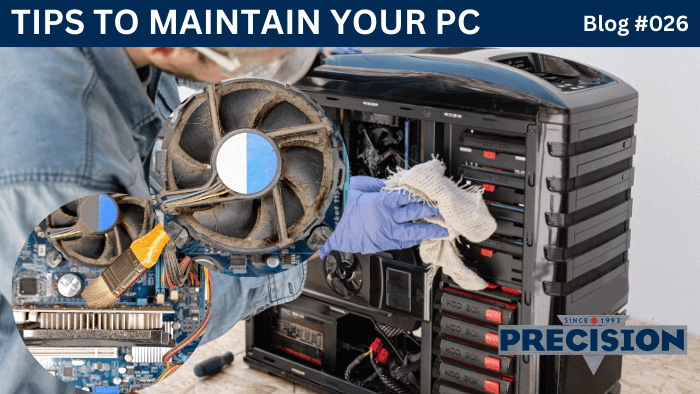
In addition to exterior cleaning, it's essential to clean the interior of your computer, especially if you have a desktop. Dust can accumulate inside and block airflow, leading to overheating. Here’s how to safely clean your computer’s interior:
- Turn Off and Unplug Your Computer: Always ensure that your computer is turned off and unplugged before cleaning. This reduces the risk of electrical shock or damage to components.
- Open the Case: If you're comfortable doing so, carefully open your computer’s case. Use compressed air to blow out dust from fans, heat sinks, and other components. Be sure to hold the can upright to avoid moisture buildup.
- Avoid Touching Components: While cleaning, avoid touching internal components, especially sensitive parts like RAM and the motherboard. If you're unsure, consider hiring a professional to handle the cleaning.
- Check for Wear and Tear: While inside, take a moment to inspect cables and connections for wear or fraying. Keeping the interior clean not only prevents overheating but also allows you to identify potential hardware issues early on, ensuring your computer continues to operate smoothly for years to come.
2. Update Software Regularly
Operating System Updates
Keeping your operating system up to date is one of the simplest yet most effective ways to maintain computer health. Updates often include critical security patches and performance improvements. Here's how to ensure your OS is up to date:
- Enable Automatic Updates: Most operating systems allow you to enable automatic updates. This way, you’ll receive the latest patches and features without having to remember to check manually.
- Schedule Regular Check-Ins: If you prefer manual updates, set a reminder to check for updates weekly or monthly. This will help you stay on top of the latest software improvements, ensuring your system is always equipped with the best security defences and functionalities.
Application Updates
In addition to updating your operating system, keeping your applications current is crucial. Outdated applications can slow down your computer and expose you to security vulnerabilities. Here’s how to manage your application updates:
- Check for Updates Frequently: Most applications have an option to check for updates within the program. Make it a habit to look for updates regularly, especially for critical applications like web browsers and antivirus software.
- Uninstall Unused Applications: Periodically review your installed applications and remove any that you no longer use. This can free up storage space and improve system performance. Unused applications not only take up valuable resources but may also receive security updates less frequently, posing potential risks. By regularly managing your applications, you ensure a cleaner and more efficient computing environment.
3. Manage Storage Space
Disk Cleanup
Regularly managing your storage space is essential for maintaining computer health. A cluttered hard drive can slow down your system and make it difficult to find important files. Here are some tips for managing your storage:
- Use Disk Cleanup Tools: Many operating systems come with built-in disk cleanup tools that can help you remove unnecessary files. These tools can identify temporary files, system files, and other data that can be safely deleted.
- Organize Files: Create a systematic folder structure for your files. This will make it easier to find what you need and keep your computer organized.
Backup Data
Backing up your data is another critical aspect of storage management. Regular backups ensure that you don’t lose important information in the event of a hardware failure or data loss. Here are some backup options:
- Use Cloud Storage: Services like Google Drive, Dropbox, and OneDrive allow you to back up files securely in the cloud, making them accessible from anywhere.
- External Hard Drives: Consider using an external hard drive for backups. This provides an additional layer of security and helps you keep a physical copy of your important files.
Conclusion
Maintaining your computer's health is essential for ensuring optimal performance, longevity, and a seamless user experience. By implementing these essential tips, such as keeping your computer clean, regularly updating software, and managing storage space, you can significantly improve your device’s functionality and lifespan.
At Precision Computers, we believe that proactive maintenance is key to preventing issues before they arise. Regular cleaning not only keeps your computer looking good but also prevents overheating and hardware failures. Software updates are crucial for security, performance, and access to new features, while proper storage management helps keep your files organized and your system running smoothly.
Furthermore, it's vital to develop a routine maintenance schedule. Set aside time weekly or monthly to check for updates, clean your device, and review your storage needs. This habit can save you time and frustration in the long run, ensuring that your computer operates at peak efficiency.
If you ever feel overwhelmed or unsure about maintaining your computer, don’t hesitate to reach out to our team of experts. We’re here to assist you with personalized solutions to keep your devices in peak condition. With the right care and attention, your computer can continue to serve you well for years to come. Prioritize your computer's health today and enjoy a faster, more efficient digital experience! Regular maintenance is not just a chore; it's an investment in your productivity and peace of mind. Explore our Service & Upgrade Offers Today!